Repair a DXF file before laser cutting or CNC machining
The problem
A DXF that looks fine on screen can still cause trouble once sent to the machine: open contours, duplicate lines, useless geometry or the wrong scale. You often notice too late — with wasted material as a result.
The video
Watch on YouTube ↗In short
This video shows how to make a DXF production-ready: analyze the drawing, fix the detected flaws, check the result in the editable before/after view, then export a clean file — without ever touching the original.
Steps
- 1
Open the file
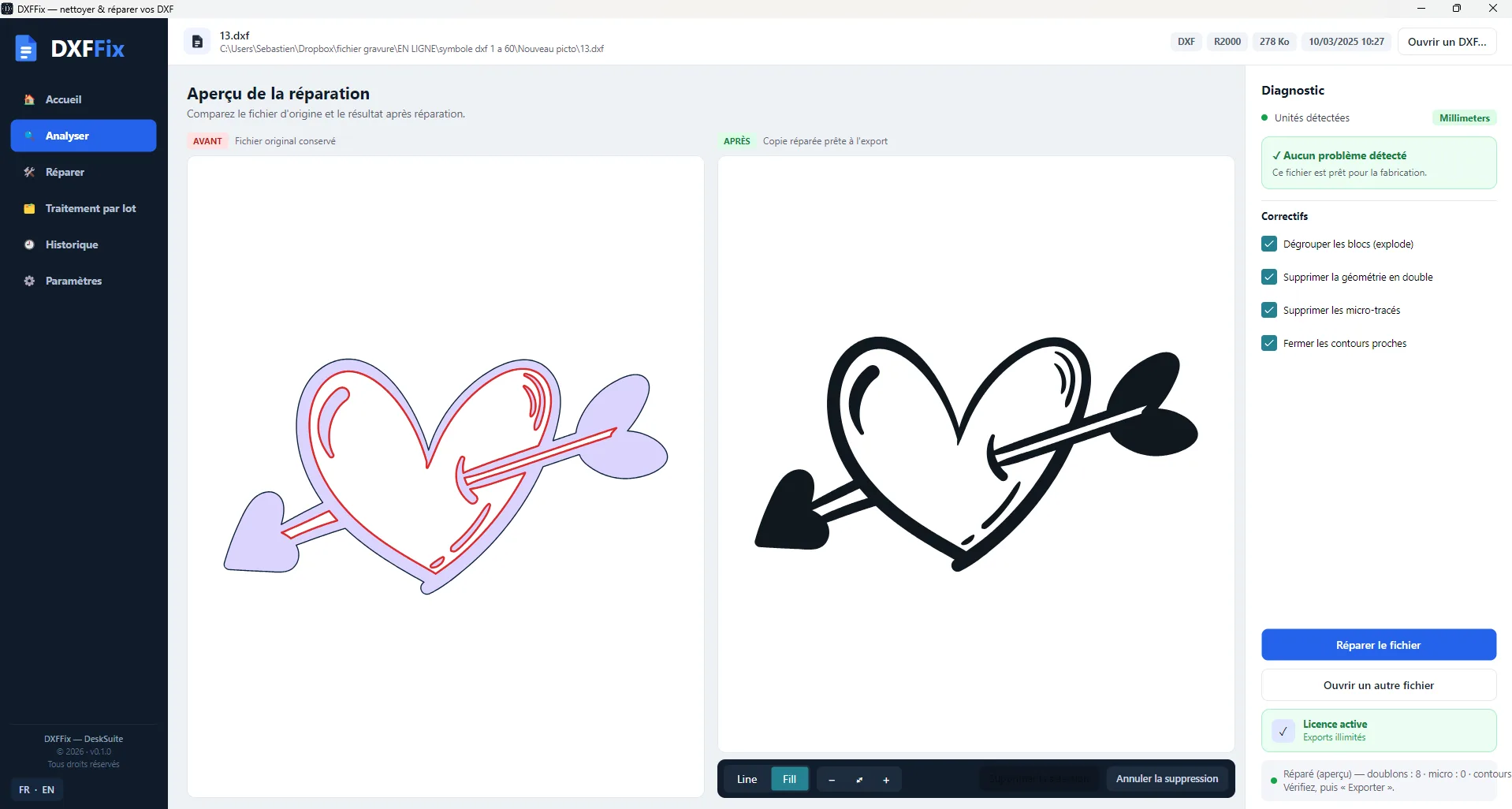
Drop your DXF into DXFFile. The original is preserved: every fix is applied to a copy.
- 2
Analyze the flaws
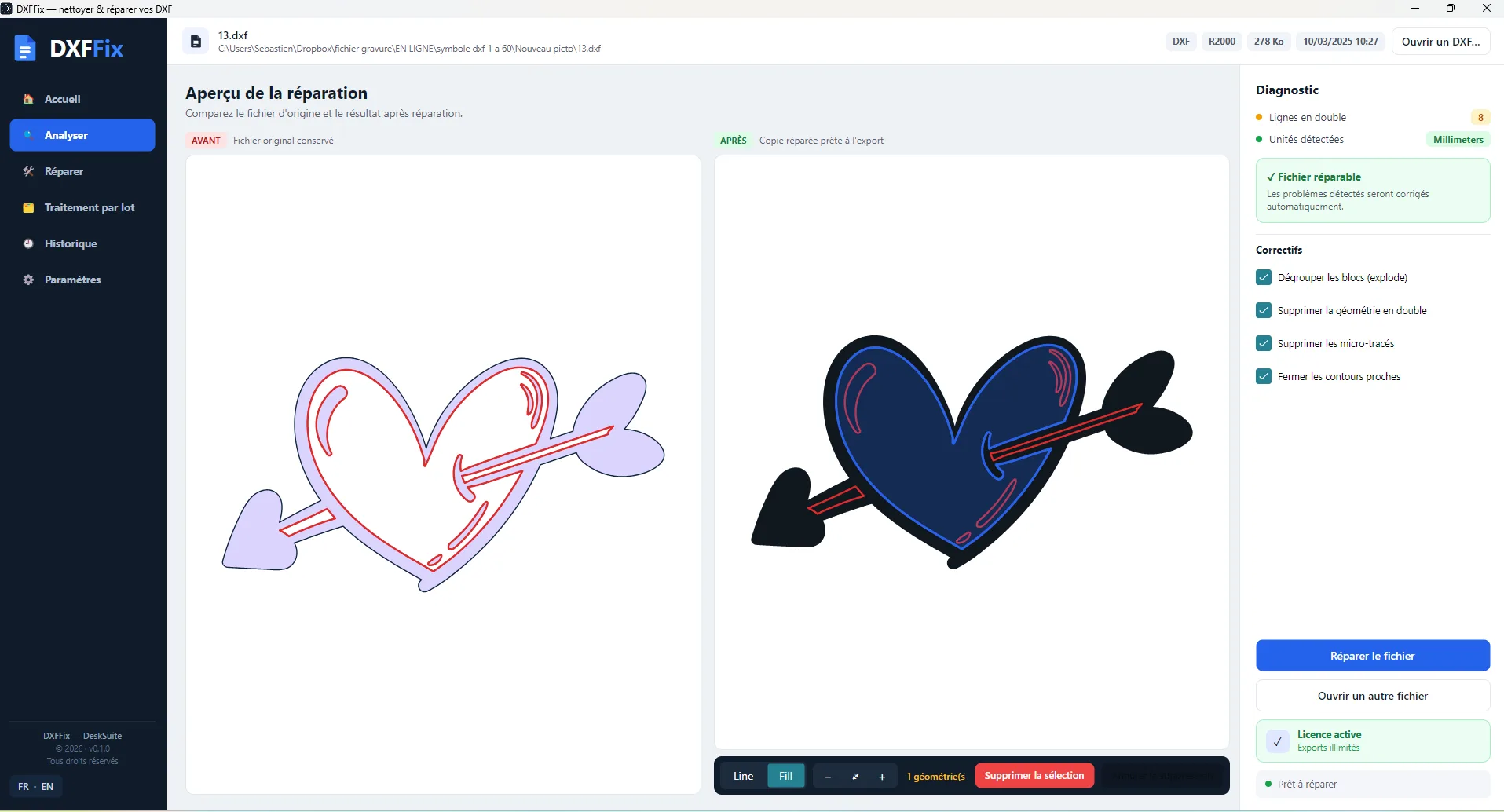
The analysis detects open contours, duplicate paths, tiny/useless geometry and unit problems, with a clear count.
- 3
Fix and verify
Tick the fixes you want (explode, duplicates, micro-paths, closing) and compare the original with the result in the editable before/after view.
- 4
Export a clean file
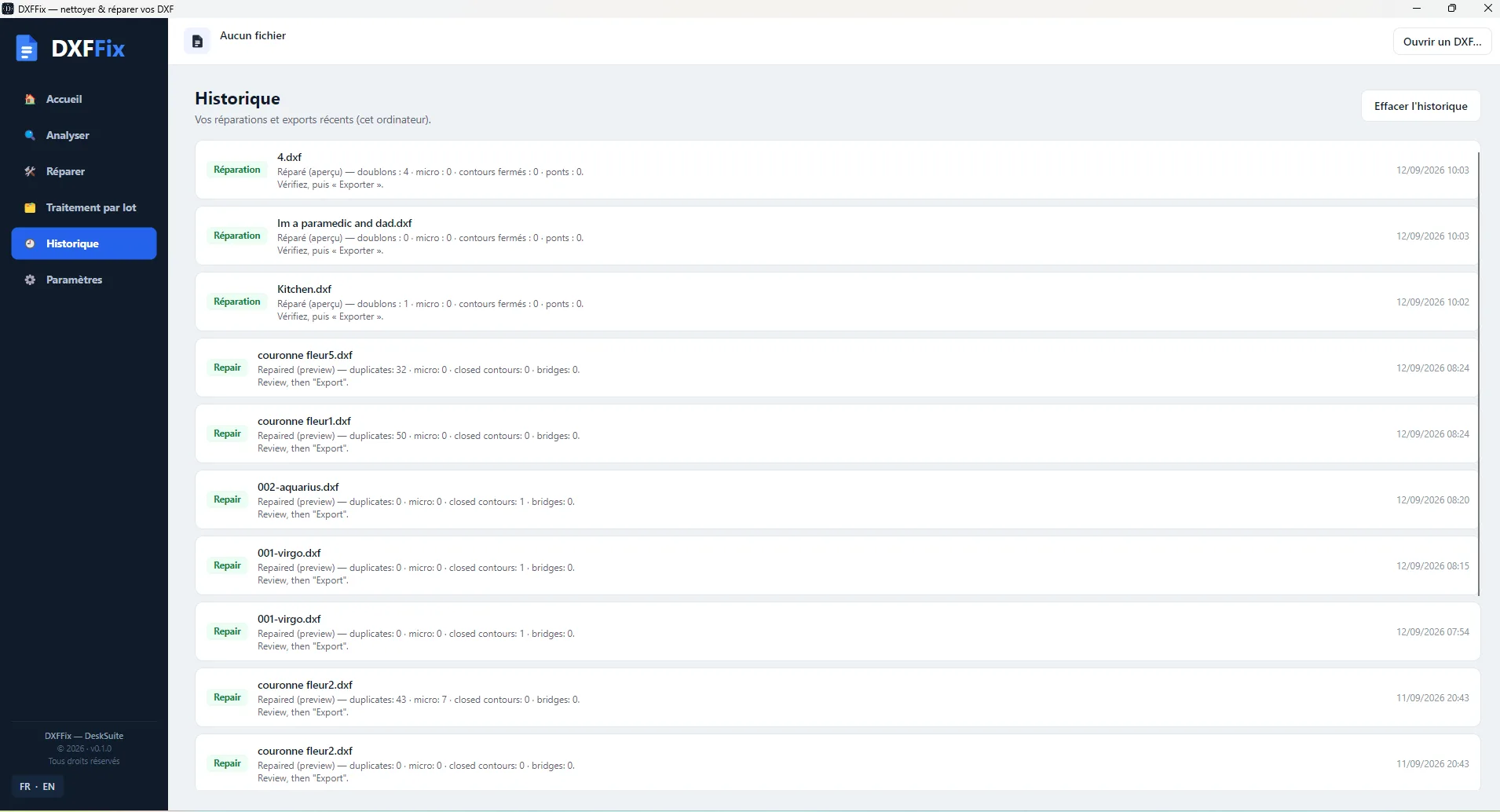
Export the fixed DXF, ready for laser cutting or CNC machining. Batch processing repairs dozens of files at once.
In pictures
Try it yourself
Download DXFFile and follow this tutorial step by step — free trial, no credit card.
Frequently asked questions
Does DXFFile modify my original file?
No. Fixes are applied to a copy; you export a new file and the original stays intact.
What does DXFFile fix exactly?
Open contours, duplicate segments, tiny/useless geometry, and unit checking/conversion.
Can I process several files at once?
Yes, batch processing applies the same fixes to a whole set of files — ideal before a production run.