Organize your DXF, SVG and LightBurn files with PandaFile
The problem
Windows Explorer only shows generic icons for your DXF, SVG, STL and LightBurn projects: there's no way to tell what a file contains without opening it one by one. You end up wasting time hunting for the right design — and recreating files you already had.
The video
Watch on YouTube ↗In short
This video shows how to turn your folders into a visual library: add a folder, let PandaFile generate real previews, then organize and find your files with search, tags and collections — all 100% offline.
Steps
- 1
Add your folders
Point PandaFile at the folders to index. Your files are never moved or changed — they stay exactly where they are.
- 2
Get real previews
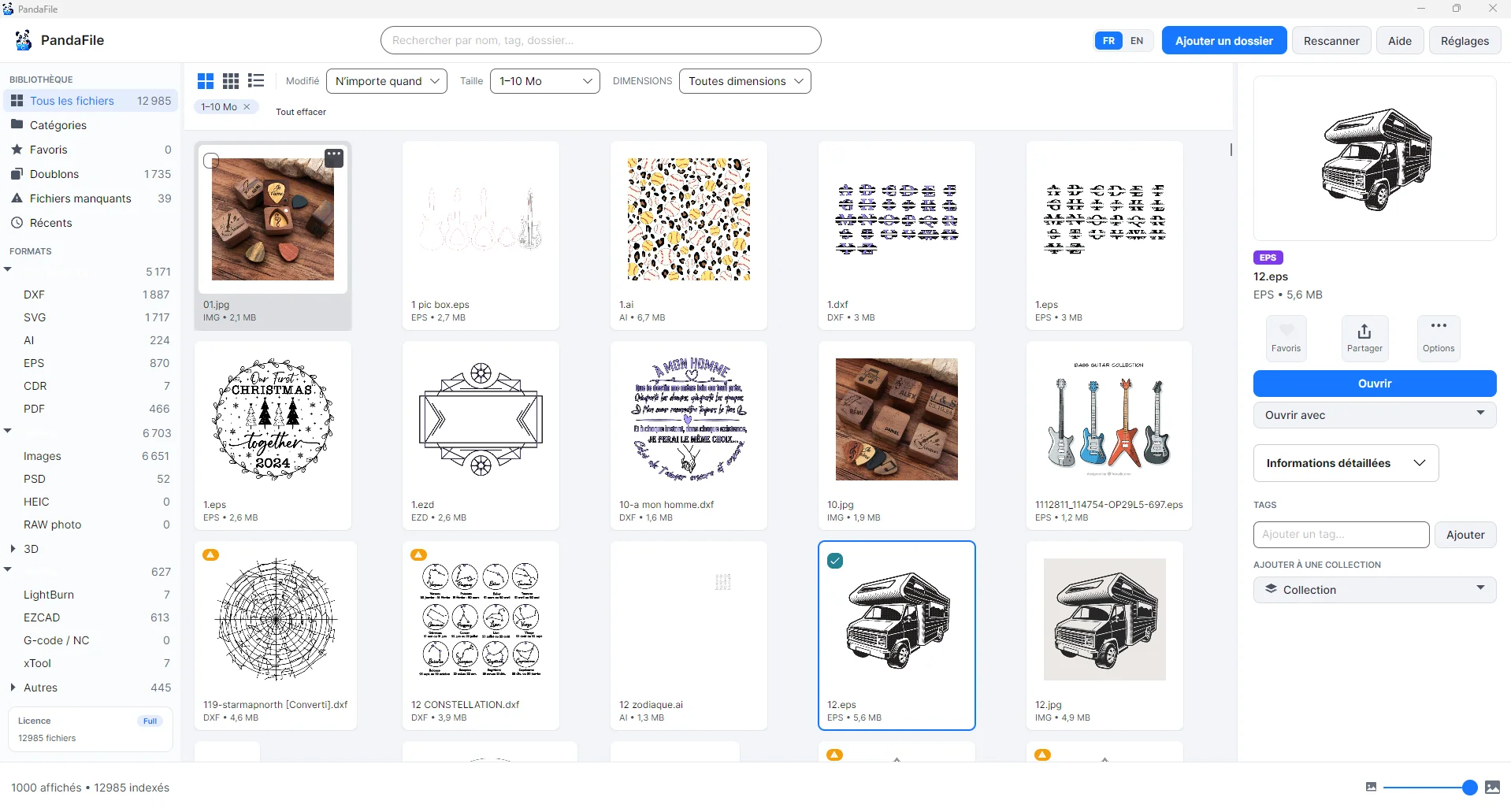
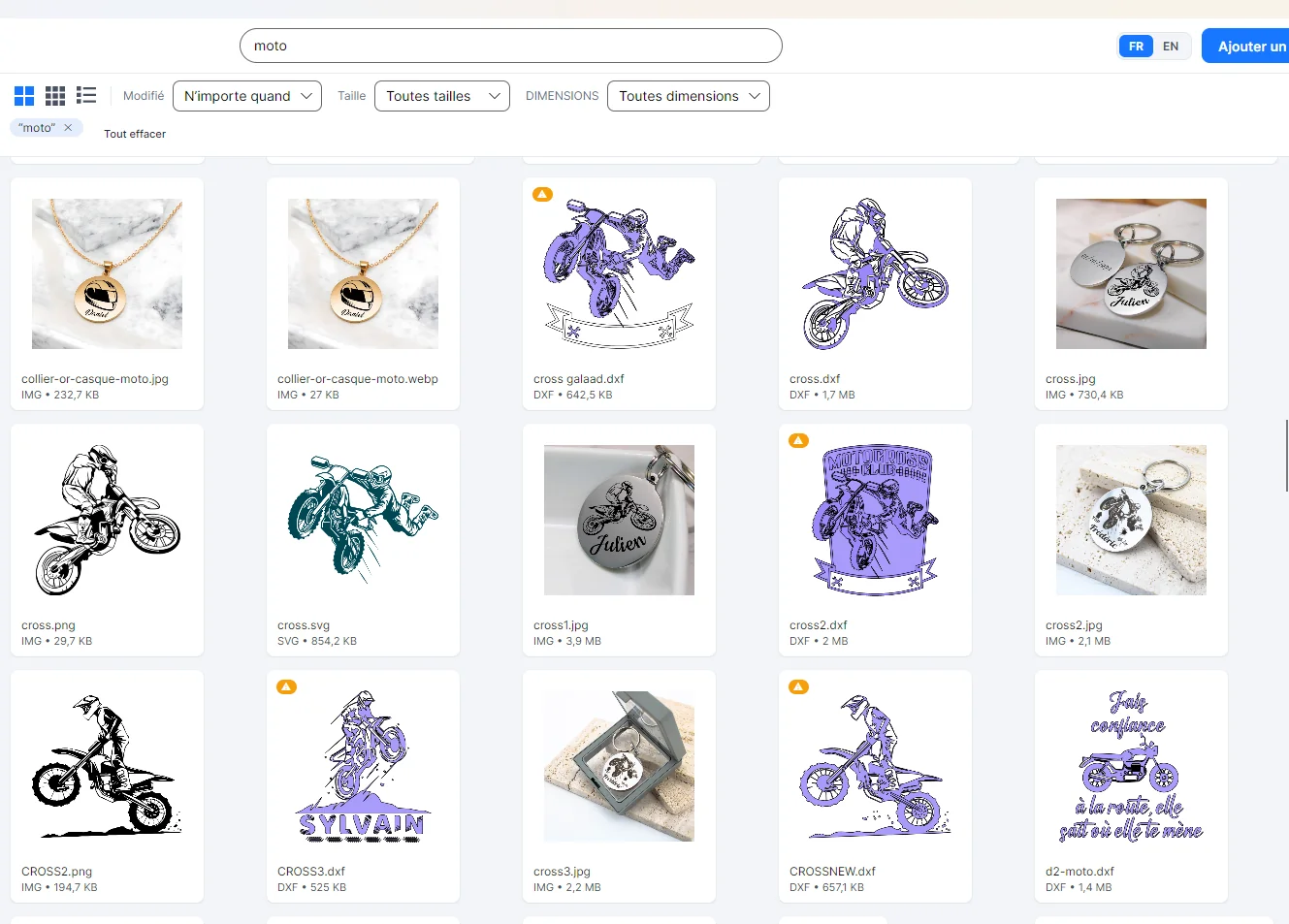
PandaFile builds accurate thumbnails for 25+ formats (DXF, SVG, STL, 3MF, LightBurn, PSD, PDF…), even the ones Windows can't show.
- 3
Sort with tags and collections
Classify by machine, material or project with tags, collections and favorites — without duplicating a single file.
- 4
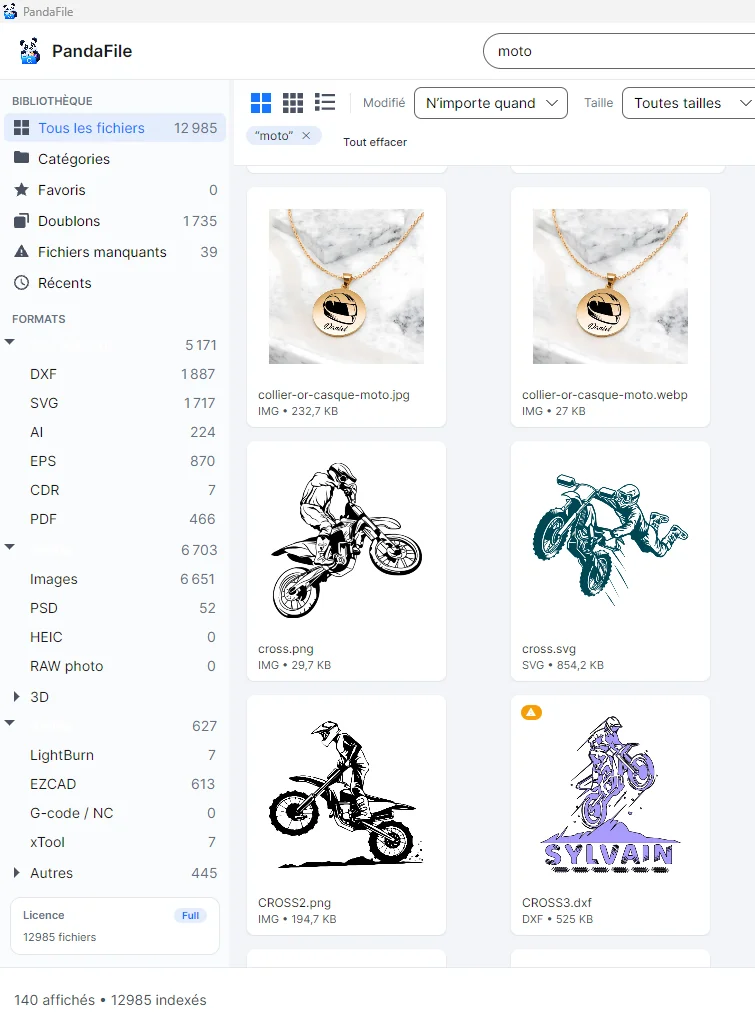
Find in seconds
Search and filters surface any file instantly, and each project can keep its fabrication recipe (settings + a photo of the result).
In pictures
Try it yourself
Download PandaFile and follow this tutorial step by step — free trial, no credit card.
Frequently asked questions
Does PandaFile move my files?
No. It indexes the folders you choose and builds its previews in a separate cache; your original files never move.
Which formats get previews?
Over 25: DXF, SVG, STL, 3MF, G-code, LightBurn, xTool, PSD, AI, EPS, PDF, images, ZIP archives, fonts and embroidery.
Do I need an internet connection?
No, everything works offline. A one-time connection is only used to activate the license.